Patching of SQL servers in Availability group is completely different than patching of servers in SQL Server Failover cluster.
Like this:
LikeLoading…
Nowadays, this is the common question that, “How to perform the patching of SQL Servers in Availability group?” or “What are the steps we should follow while patching Availability replica?“
The SQL Server AlwaysOn Availability group consists of multiple instances with one primary and multiple secondary replicas. You are aware that SQL services on these instances/servers are always in a running state. Data continuously flows back and forth on these instances. Such situation makes patching servers complex.
Patching of servers in an Availability group is completely different than the patching of servers in SQL Server Failover Cluster.
Download the security updates or cumulative updates from the below official Microsoft’s site. Microsoft Update Catalogue
First of all we should take a good backup of Servers and the databases residing on those servers. If possible taking VM Snapshot before the activity is a good option in such scenarios.
Generally, we use one secondary replica with “Synchronous commit mode with Automatic Failover” option. Another secondary replica uses “Asynchronous Commit mode with Manual Failover”. Keep in mind that we need to change the failover mode of both the replicas to “Manual Failover”.
Change Failover Mode from Automatic to Manual for all availability replica
If the availability mode of a replica is “synchronous commit”, SQL Server waits for transactions to apply on the secondary server. Then, it commits on the primary server.
If for any reason the secondary server is not available, it will start increasing the size of transaction logs. This will start creating further issues.
To avoid this we should change the availability mode of replicas to “asynchronous commit”. so that SQL server will not wait for the transactions to be applied on secondary servers.
Availability Replica with Asynchronous commit mode
Now go to secondary server and apply service packs, cumulative patches or OS patches.
Make sure that all the patches are successful and the given secondary server has been rebooted as per requirement.
Once server comes online make sure to bring all SQL services up and running. Validate all the SQL services and databases are running as expected.
Check the SQL server error logs for any errors.
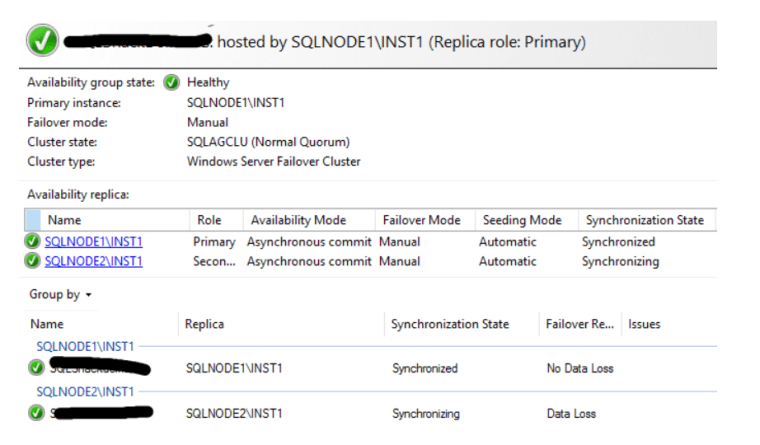
Now connect to database instance and go to Availability Group Dashboard and verify everything is healthy.
Example of Healthy Availability Group Dashboard
Now perform the manual failover from primary replica to the secondary replica.
After the failover existing primary replica becomes the secondary replica. Perform all above steps to patch new secondary server as well.
Once you finish the patching for this server check the SQL server versions of all the replicas.
Ensure that the patches you have installed are applied successfully on all the replicas. Verify that all the SQL servers are in the same configurations with the same Cumulative updates.
Now go to the properties of Availability group and change the failover mode and availability mode with the original settings.
Now you have successfully completed the patching of servers in Availability group.
I am a Pune based SQL Server DBA. I have 10+ years in L3 support, AlwaysOn AGs, Performance tuning and cloud databases. I created sqldbas.org to solve real-world challenges faced by DBAs and aspiring SQL professionals. I draw from production environments such as solarwinds monitoring, buffer pool optimization and DR setups. I share tested solutions and T-SQL scripts. These include troubleshooting guides that saved hours in enterprise deployments. when you're handling daily incidents or learning SQL server, find practival fixes here. Microsoft cerrtified trainer offering virtual DBA classes. Let's master SQL reliability together.


1 Comment »