Skip to content

Tag: AlwaysOn Availability Group

SQL Server Availability groups 1

Patching of SQL Servers in Availability Group

Nowadays, this is the common question that, “How to perform the patching of SQL Servers in Availability group?” or “What are the steps we should follow while patching Availability replica?

The SQL Server AlwaysOn Availability group consists of multiple instances with one primary and multiple secondary replicas.
You are aware that SQL services on these instances/servers are always in a running state. Data continuously flows back and forth on these instances. Such situation makes patching servers complex.

Patching of servers in an Availability group is completely different than the patching of servers in SQL Server Failover Cluster.

Let us see steps to patch SQL servers in AlwaysOn Configuration.

  • Download the security updates or cumulative updates from the below official Microsoft’s site.
    Microsoft Update Catalogue
  • First of all we should take a good backup of Servers and the databases residing on those servers. If possible taking VM Snapshot before the activity is a good option in such scenarios.
  • Generally, we use one secondary replica with “Synchronous commit mode with Automatic Failover” option. Another secondary replica uses “Asynchronous Commit mode with Manual Failover”. Keep in mind that we need to change the failover mode of both the replicas to “Manual Failover”.
Change Failover Mode from Automatic to Manual for all availability replica
  • If the availability mode of a replica is “synchronous commit”, SQL Server waits for transactions to apply on the secondary server. Then, it commits on the primary server.
  • If for any reason the secondary server is not available, it will start increasing the size of transaction logs. This will start creating further issues.
  • To avoid this we should change the availability mode of replicas to “asynchronous commit”. so that SQL server will not wait for the transactions to be applied on secondary servers.
Availability Replica with Asynchronous commit mode
  • Now go to secondary server and apply service packs, cumulative patches or OS patches.
  • Make sure that all the patches are successful and the given secondary server has been rebooted as per requirement.
  • Once server comes online make sure to bring all SQL services up and running. Validate all the SQL services and databases are running as expected.
  • Check the SQL server error logs for any errors.
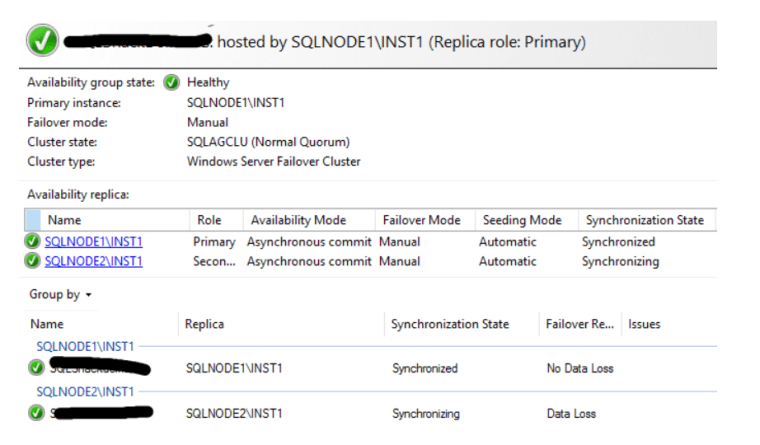
  • Now connect to database instance and go to Availability Group Dashboard and verify everything is healthy.
Example of Healthy Availability Group Dashboard
  • Now perform the manual failover from primary replica to the secondary replica.
  • After the failover existing primary replica becomes the secondary replica. Perform all above steps to patch new secondary server as well.
  • Once you finish the patching for this server check the SQL server versions of all the replicas.
  • Ensure that the patches you have installed are applied successfully on all the replicas. Verify that all the SQL servers are in the same configurations with the same Cumulative updates.
  • Now go to the properties of Availability group and change the failover mode and availability mode with the original settings.

Now you have successfully completed the patching of servers in Availability group.

Check all related articles

Disaster Recovery 2

Configure AlwaysOn: Windows & SQL Server Requirements

Nowadays, most suitable high availability and disaster recovery solution is AlwaysOn. It is a mixture of SQL Server Failover Cluster Instance and Database Mirroring. Here we are going to see requirements to configure AlwaysOn.

Requirements from Windows server side to Configure AlwaysOn:

  1. Ensure that the server is not a Domain Controller. Availability Group is not supported on Domain Controllers.
  2. Also make sure that each server participating in this configuration is running on Windows server 2012 or Later.
  3. Each server has to be the part of the Windows Server Failover Cluster (WSFC).
  4. For best performance use separate network adapter for AlwaysOn availability group.
  5. All the nodes must have sufficient disk space. As the primary database grows, their corresponding replica also grows by the same amount.
  6. To manage the Windows Server Faiolver Cluster, the user must have administrator access on each node of the cluster.
  7. The instances of SQL Server that hosts replicas for an Availability group resides on separate nodes of the same cluster.
  8. In all the nodes you need to use same SQL Server Service Account.
  9. You need to register the Service Principal Name (SPN) with Active Directory (AD). Do this on the SQL Server Service Account. This is required for the Virtual Network Name (VNN) of the availability group listener.
  10. Keep in mind that, if you change the SQL Server Service Account, you need to manually re-register the SPN.

Requirements from SQL Server side:

  1. All nodes of cluster need to have the same version of SQL Server.
  2. Also, you must use same SQL Server Collation for all the instances.
  3. Enable AlwaysOn feature on each server instance.
  4. Availability replicas must be hosted on different nodes of one Windows Server Failover Cluster (WSFC).
  5. Availability group name must be unique and length should not be more than 128 characters.
  6. Each Availability group supports one primary replica and up to 8 secondary replicas.
  7. Up to 3 replicas will run on Synchronous-Commit mode. This includes 1 primary and 2 secondary. Other replicas will run on Asynchronous-Commit mode.
  8. Do not use the Failover Cluster Manager to fail over availability groups. You need to use the SQL server management studio to do it.

Note:

  1. We can’t add System databases in availability group.
  2. We can’t add read only databases to Availability group.

To know more about the SQL server availability groups in AlwaysOn Configuration, please check below article.

SQL Server Availability Groups in AlwaysOn Configuration

Patching of SQL servers in Availability Group

Check all related articles