Skip to content

Category: SQL Server

Visualization of database sessions 1, 2, 3, and latch waits connecting to a central TEMPDB node
SQL Server 0

Usage of Tempdb and Tempdb Contention

SQL Server has few system databases which was used to store the medata and information related to SQL server which will require to function the SQL server smoothly. Tempdb is one of the important System database.

What is Tempdb?

Tempdb is a system database. It is used to store the temporary objects and intermediate results which created at the time of query executions.

When SQL services stops tempdb gets cleared and when SQL services starts again tempdb always starts as a clean copy.

Best practices for Tempdb

  1. Always keep tempdb on fast and dedicated storage.
    Ex. On Azure IaaS server there is drive called as Temporary storage, it is fast dedicated. we can use that drive for tempdb.
  2. Use multiple same size dta files to reduce allocation contention.
    Ex. 1 file per CPU core upto 8 files.
  3. Pre-size data and log files to avoid frequent autogrowth. Also, keep autogrowth increaments resonable.
    Ex. 512 MB for data files and 256 MB for log files.
  4. All databases on the same instance share or use same Tempdb.

Basic but important points about Tempdb

  1. Tempdb database is minimally logged.
  2. we can not backup tempdb database.
  3. If tempdb gets full, queries starts failing or slowdown drastically.

Usage of Tempdb

Tempdb is used to store the user created temporary objects like local temp tables #temp and global temp tables ##temp, table-valued variables and temporary stored procedures.
It is used to perform operations like sorts, hashes, spools, worktables and intermediate result sets when an operation can not fit in a memory.
Data related row versions for features like Read-Committed Snapshot Isolation, Snapshot Isolation, online index rebuilds, MARS and some triggers.
Also, it acts as a temporary storage for certain metadata structures, cursors and some internal objects.

What if Tempdb is getting full?

  1. Check why tempdb is not able to grow.
    – Confirm that the tempdb files have autogrowth turned ON.
    – Check and confirm that disks are not full and files are not hitting their maxsize.
    If disks are full, add some space or pre-grow tempdb data and log files to safe size.

2. Identify the queries and sessions which are burning the tempdb space.

3. Take action on culprit.
– If you get long running or runaway query, reconsider killing it carefully.
– If maintainancr job or any other job is the cause, reschedule it outside of peak hours.

4. Once the cause is resolved shrink the tempdb files.

5. If there is emergency then restart the SQL services.

What is Tempdb Contention?

In SQL Server Tempdb contention occurs when multiple sessions and queries complete for access to shared allocation pages like PFS, GAM and SGAM causing latch waits and performance bottlenecks.

When you execute DMV like sys.dm_exec_requests you will see high waits on PAGEIOLATCH_*, PAGELATCH_* or LATCH_*. This occurs especially during heavy temp table or sort operations. Queries slow down under concurrency.

Below are the types of Contention

Allocation Contention

Sessions queue for PFS, GAM, SGAM pages during object creation in tempdb data files.

Metadata Contention

Overloaded access to tempdb system tables(Ex.sys.objects) from many temp table creations.

Solution to Tempdb Contention issue

Add multiple equally sized tempdb data files(1 per logical CPU upto 8, then in multiples of 4) to spread load via round robbin allocation.
For SQL server 2019 and above versions, enable memory optimized tempdb metadata to eliminate metadata issues.

Solution for Tempdb Contention issue

Check all related blogs

SQL Server 0

SQL Server ACID Properties

What is ACID Properties in SQL?

These Properties are important aspects of whole Database Management System.

Many application uses MS SQL server for their databases. Number of complex queries runs on the database, many a times multiple queries were running on the databases. But we never heard that, SQL server has any type of issue in the data due to this.

You know how SQL server is achieving this?

SQL Server ensures the transaction reliability by enforcing Atomicity, Consistency, Isolation, and Durability through the storage engines Transaction Manager.
These Properties of SQL server are called as ACID property.

Atomicity

Whenever we execute any transaction, it will execute fully or fails completely. If the transaction fails partially, SQL server triggers the ROLLBACK.

  • There is no partial execution
  • This property prevents partial data updates
  • Maintains data integrity
  • SQL servers uses below commands to achieve this
    BEGIN TRANSACTION,
    COMMIT,
    ROLLBACK

Technically SQL server uses Transaction Logs and Write-Ahead logging mechanisms to achieve Atomicity.

Example:-

Bank transfer from Account A to Account B:

  • Step 1: Debit 100 from A (UPDATE AccountA SET Balance = Balance – 100).
  • Step 2: Credit 100 to B (UPDATE AccountB SET Balance = Balance + 100).

With Atomicity, you never end up with A debited but B not credited.
Either both updates succeed, or both are undone.

Consistency

This property ensures that a transaction brings the database from one valid state to another. It preserves all defined rules like constraints, triggers, and relationships.

After a transaction

  • All rules, constraints, and relationships must be satisfied
  • Invalid data is not allowed

SQL server enforces consistency using following-

1. Constraints
Primary Key – no duplicates, no Nulls
Foreign key – valid relationship
UNIQE- No duplicate values
CHECK – validate conditions
Not Null – prevent missing value

2. Triggers
Automatically enforce business rule

3. Data Types
Ensures correct format

4. Indexes and relationships
Maintain logical integrity between tables

Atomicity handles completions, where consistency handles correctness.

Isolation

This property of SQL server controls how transactions interact with each other when running concurrently

It ensures that one transaction does not interfere with another transaction’s data

This prevents dirty reads, non-repeatable reads and phantom reads Default Isolation level in SQL server is READ COMMITTED.

Durability

This property ensures that once the transaction commits, its changes are permanently saved. These changes survive system failures like power outages, crashes, or restarts.

When you execute the transactions in SQL server, data is written to transaction logs.

When you Commit, SQL server forces transaction log records to disk.

Once the data flushes to the disk, it becomes durable

Please refer below Microsoft article for more information

ACID Properties

Check all related articles

System database 0

Resource Database

Till now you are aware about the 4 main system databases. However, there is one more important, but hidden system database is exists. Yes, it is called as Resource Database or mssqlsystemesource database.

Today, we will explore this hidden database in SQL Server.

  • This is hidden and read only system database.
  • It does not contain user data or user metadata.
  • It contains all the system objects that are included with SQL Server.
  • SQL Server system objects like sys.objects are resides in this database, however, they logically appear in the sys schema of all the databases

Physical Properties of Resource Database

  • Below are the physical file names of the resource database
    • mssqlsystemresource.mdf
    • mssqlsystemresource.ldf
  • Below is the location of these files.
    <drive>;\Program Files\Microsoft SQL Server\MSSQL<version>.<instance_name>\MSSQL\Binn\
  • Each instance has only one associated mssqlsystemresource.mdf file.
  • Changing the location of resource database files is not at all recommended.
  • The Id of this Database is always 32767.
  • Other important values associated with this database are as below
    • Version Number
      SELECT SERVERPROPERTY('ResourceVersion');
      GO
    • Last time the database was updated
      SELECT SERVERPROPERTY('ResourceLastUpdateDateTime');
      GO

Backup and Restore of Resource Database

  • We can not backup this database using SQL server like other system or user databases.
  • If you want to backup, you can take the backup of the resource database files directly like file backup.

Please check below Microsoft article for further information.

Resource Database

Check all related articles

SQL Server Availability groups 1

Patching of SQL Servers in Availability Group

Nowadays, this is the common question that, “How to perform the patching of SQL Servers in Availability group?” or “What are the steps we should follow while patching Availability replica?

The SQL Server AlwaysOn Availability group consists of multiple instances with one primary and multiple secondary replicas.
You are aware that SQL services on these instances/servers are always in a running state. Data continuously flows back and forth on these instances. Such situation makes patching servers complex.

Patching of servers in an Availability group is completely different than the patching of servers in SQL Server Failover Cluster.

Let us see steps to patch SQL servers in AlwaysOn Configuration.

  • Download the security updates or cumulative updates from the below official Microsoft’s site.
    Microsoft Update Catalogue
  • First of all we should take a good backup of Servers and the databases residing on those servers. If possible taking VM Snapshot before the activity is a good option in such scenarios.
  • Generally, we use one secondary replica with “Synchronous commit mode with Automatic Failover” option. Another secondary replica uses “Asynchronous Commit mode with Manual Failover”. Keep in mind that we need to change the failover mode of both the replicas to “Manual Failover”.
Change Failover Mode from Automatic to Manual for all availability replica
  • If the availability mode of a replica is “synchronous commit”, SQL Server waits for transactions to apply on the secondary server. Then, it commits on the primary server.
  • If for any reason the secondary server is not available, it will start increasing the size of transaction logs. This will start creating further issues.
  • To avoid this we should change the availability mode of replicas to “asynchronous commit”. so that SQL server will not wait for the transactions to be applied on secondary servers.
Availability Replica with Asynchronous commit mode
  • Now go to secondary server and apply service packs, cumulative patches or OS patches.
  • Make sure that all the patches are successful and the given secondary server has been rebooted as per requirement.
  • Once server comes online make sure to bring all SQL services up and running. Validate all the SQL services and databases are running as expected.
  • Check the SQL server error logs for any errors.
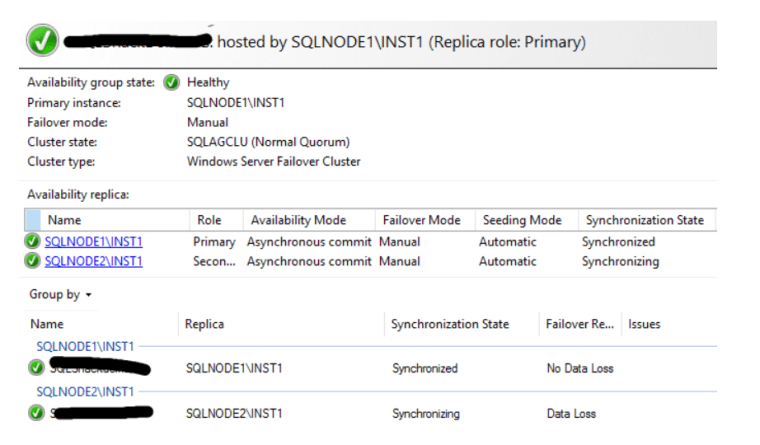
  • Now connect to database instance and go to Availability Group Dashboard and verify everything is healthy.
Example of Healthy Availability Group Dashboard
  • Now perform the manual failover from primary replica to the secondary replica.
  • After the failover existing primary replica becomes the secondary replica. Perform all above steps to patch new secondary server as well.
  • Once you finish the patching for this server check the SQL server versions of all the replicas.
  • Ensure that the patches you have installed are applied successfully on all the replicas. Verify that all the SQL servers are in the same configurations with the same Cumulative updates.
  • Now go to the properties of Availability group and change the failover mode and availability mode with the original settings.

Now you have successfully completed the patching of servers in Availability group.

Check all related articles

SQL Server 1

SQL Server Replication Types and Components

SQL Server Replication is a technique of copying and distributing data and database objects from one database to another. It then synchronizes between databases to maintain the consistency and integrity of data.
In Replication data is synchronizing continuously or it can also schedule to run in fixed intervals.
There are multiple types of replication based on the several types of data synchronization they support.

1. Snapshot Replication
2. Transactional Replication
3. Merge Replication
4. Peer-to-peer Replication

Below are basic components of Replication

  1. Article
    An Article is the basic unit of Replication in SQL server. An article can be Table, View, Stored Procedure and function. We can create multiple articles on same object.

2. Publication
A publication is a logical collection of articles. It includes the article to be provided to subscriber. You can use below query to get more information on your publication.

EXEC sp_helppublications;

3. Publisher Database
The database holds a list of objects. These objects are designated as SQL Server replication articles and are known as a publication database.
The publisher can have one or more publications.
Each publisher defines a data propagation mechanism by creating several internal replication stored procedures.

4. Publisher
The publisher is the database instance which makes data available to other database instances using SQL server replication. The publisher can have multiple publications, each defines logical set of objects and data to replicate.

5. Distributor
The Distributor is the database that stores transactions from publisher and distributes those to subscriber. Sometimes Publisher instance also acts as distributor. However, in remote distributor scenario, Publisher and Distributor runs on different instances.
Basically, it collects data from Publisher and sends it to Subscriber.

6. Distribution databases
Distributor must have at least one Distribution database.
The Distribution database consists of article data, replication metadata, and data.
A remote Distributor can have multiple distribution databases. However, all publications defined on a single publisher must use the same distribution database.
To check details of Distribution database you can use below queries.

EXEC sp_helpdistributor;
EXEC sp_helpdistributiondb;
EXEC sp_helpdistpublisher;

7. Subscriber
Subscriber receives SQL server replication data from publisher. Subscriber can receive data from one or more publishers. The subscriber can pass the database changes back to the publisher. Alternatively, they can republish the data to other subscribers. This depends on the replication type and design.
To check details of subscriber you can use below query.

EXEC sp_helpsubscriberinfo;

8. Subscriptions
A subscription is request for a copy of a publication to be delivered to a subscriber. The subscription defines what publication data will be received, where and when.
There are two types of subscription

  1. Push Subscription – Distributor directly updates the data in the Subscriber database.
  2. Pull Subscription – the subscriber is scheduled to check at the distributor regularly. They determine if any new changes are available. Then, they update the data in the subscription database.

To check details of subscription you can use below query.

EXEC sp_helpsubscription;

9. Replication Agents
Replication uses a number of standalone programs. These programs are called agents. They carry out the tasks associated with tracking changes and distributing data. By default, replication agents run as jobs scheduled under SQL Server Agent. SQL Server Agent must be running for the jobs to run.
Replication agents can also be run from the command line and by applications that use Replication Management Objects(RMO).
Replication agents can be administered from SQL Server Replication Monitor and SQL Server Management Studio.

10. Snapshot Agent
The snapshot agent prepares the schema and initial data files of published tables and other objects. It takes a snapshot, stores the snapshot files, and records information about synchronization in the distribution database.
Snapshot Agent runs at distributor.
It is typically used in all types of replication.

11. Log Reader Agent
The Log Reader Agent is used with Transactional replication. It moves transactions from the transaction log on the Publisher to the distribution database.
Each database in transactional replication has its own Log Reader Agent. This agent runs on the Distributor. It connects to the Publisher.

12. Distribution Agent
The Distribution agent is used with Snapshot replication and transactional replication. It applies initial snapshot to the subscriber and moves transactions from the distribution database to subscribers.
For push subscriptions Distribution Agent runs at the Distributor.
For pull subscriptions Distribution Agent runs at the Subscriber.

13. Merge Agent
The Merge agent is used with merge replication. It applies the initial snapshot to the subscriber and reconciles the incremental data changes that occur at both ends.
By default, the Merge Agent uploads changes from the subscriber to the publisher. It then downloads the changes from the Publisher to the Subscriber.

Check all related articles

SQL Server 2

MSDB Database-Usage, Features

MSDB Database is one of the important system database.

The MSDB database serves SQL server Agent by handling jobs. It also supports other features such as Service Broker and Database Mail. SQL Server automatically maintains the history of Backup and Restore within MSDB Tables. It includes information like the name of the user that performed the backup. It also includes the time of the backup. It details the device or path where the backup is stored.

Backup events for all databases are recorded even if they were created with custom application or third party tools.
Because of all these reasons Microsoft always recommends to keep the MSDB files in fault tolerant storage space.
By default, recovery model of this database is set to Simple.

Roles:

MSDB is the only system database that has pre-defined database roles besides the regular fixed roles.

MSDB Database Roles

Below are the database roles and their use.

Group NameDatabase Role NameRemarks
Database MailDatabaseMailUserRoleOnly members of this database role can send mails through SQL Server.
Integration Services Rolesdb_ssisadmin
db_ssisltduser
db_ssisoperator
Only members of this database role can work with SSIS packages.
Data Collectordc_operator
dc_admin
dc_proxy
Used to implement the Data Collector Security.
Policy-Based ManagementPolicyAdministratorRoleOnly members of this database role can manage a SQL Server instance Policies.
Server GroupServerGroupAdministratorRole
ServerGroupReaderRole
Only members of these database roles can administer and use registered server groups.
SQL Server Agent Fixed Database RolesSQLAgentUserRole
SQLAgentReaderRole
SQLAgentOperatorRole
Only members of one of these database roles can use SQL Server Agent.
Multiserver EnvironmentTargetServersRoleUsed to work with a Multiserver Environment.
Server UtilityUtilityCMRReader
UtilityIMRWriter
UtilityIMRReader
Used to work with the Server Utility.
MSDB database roles with their use

Restrictions

We have many restrictions while working with this database. We cannot perform below activities on this database.

  1. We cannot drop MSDB database.
  2. We cannot drop the “Guest” user from this database.
  3. As it is one of the system databases, we cannot enable Change Data Capture (CDC) on this database.
  4. This database cannot participate in the database mirroring solution.
  5. We cannot remove the primary file group, primary data file or log file from the this database.
  6. Renaming of the database or primary file group is not possible for this database.
  7. MSDB database’s default collation is the MSSQL instance collation and cannot be changed.
  8. We cannot take MSDB database offline.
  9. We cannot change the primary file group to READ_ONLY.

Check all related articles

SQL Server 0

Rename The SQL Server

Often during a side by side upgrade, the application team refuses to change the connection string. They want to avoid altering it from the application end. They are unable to point the application to the new SQL server. In such a scenario, they ask you to rename the SQL server with the existing server. This way, when the application comes up, it will connect with the new SQL server without any issue.

Recently I came across the same situation. The application team was not allowing us the side by side upgrade approach. They don’t want to make any changes on the application end. So we provided them the solution. We decided to build the new server first. At the time of final cutover, we will rename the SQL server with the old name.

At the time of final cutover, we rename the SQL server from windows side and started the application. Unfortunately application was not able to connect to the database. Application was throwing error that unable to connect to the database. After investigation we found that only renaming of server is not enough. You need to rename the SQL server from SQL side as well. Yes, you read it correct. You need to alter or update the New name in System Metadata that is stored in “sys. servers” and reported by the system function “@@SERVERNAME” to rename SQL server.

Rename the SQL server:

To change or rename the SQL server, please follow below steps.

  1. If the server hosts the Default instance of SQL Server then, execute below queries.
sp_dropserver <old_name>;
GO
sp_addserver <new_name>, local;
GO

To get these changes effective you need to restart the SQL Services.

2. If the server hosts the Named instance of SQL Server then, execute below queries.

sp_dropserver <old_name\instancename>;
GO
sp_addserver <new_name\instancename>, local;
GO

To get these changes effective you need to restart the SQL Services.

Note: – In Named instance the server name is in format of ServerName\InstanceName. You can change it to NewServerName\InstanceName, but you cannot change it to ServerName\NewInstanceName.

Story don’t end here, sometime even if you execute above queries, it will not work or you will get the error.

In below scenarios you get errors after running above queries.

  1. When Remote logins are present
Error Message:
Server: Msg 15190, Level 16, State 1, Procedure sp_dropserver,
Line 44 There are still remote logins for the server 'SERVER A'

2. When Logins associated with Linked server are present

Error Message:
Server: Msg 15190, Level 16, State 1, Procedure sp_dropserver,
Line 44 There are still remote logins or linked logins for the server 'SERVER A'

Check all related articles

SQL Server 2

Change The SQL Server Name Where Logins Associated With Linked Server Are Present. Or Fix Error : Msg 15190 – There are still remote logins or linked logins for the server

If you go and change the SQL server name wher it has Linked server and logins associated with it. In such cases, if you attempt to drop the old server name for renaming SQL server, then you will get below error.

Server: Msg 15190, Level 16, State 1, Procedure sp_dropserver, Line 44
There are still remote logins or linked logins for the server 'SERVER A'

In this scenario, first you need to find out which are logins associated with Linked server. Below stored procedure will help you to check this.

EXEC sp_helplinkedsrvlogin

In the result of this Stored Procedure you will get the list of logins associated with linked server. Now you need to drop these logins one by one.

To drop these logins, please use below query.

sp_droplinkedsrvlogin 'old_name', 'linked_login';

After successful removal of these logins, you can drop the old server easily. Now go ahead and rename the SQL server. You can perform below steps to do this.

  1. If the server hosts the default instance of SQL Server then, execute below queries.
sp_dropserver <old_name>;
GO
sp_addserver <new_name>, local;
GO

To get these changes effective you need to restart the SQL Services.

2. If the server hosts the named instance of SQL Server then, execute below queries.

sp_dropserver <old_name\instancename>;
GO
sp_addserver <new_name\instancename>, local;
GO

To get these changes effective you need to restart the SQL Services.

Check all related articles

SQL Server 2

Change The SQL Server Name Where Remote Logins Are Present. Or Fix the Error: Msg 15190 – There are still remote logins for the server

If the SQL Server has the Remote Logins, then at the time of changing the SQL Server name you will receive below error.

Server: Msg 15190, Level 16, State 1, Procedure sp_dropserver,
Line 44 There are still remote logins for the server 'SERVER A'

This is because some remote logins are present on the server and they are not allowed to modify the Server name in System metadata. To solve this problem, first you need to drop these remote logins. In order to drop these logins, please follow below procedure.

  1. If the SQL server instance is default instance. Please run below query.
sp_dropremotelogin old_name;
GO

2. If the SQL Server Instance is Named instance, then please run below query.

sp_dropremotelogin old_name\instancename;
Go

After removal of all remote logins you can easily rename the SQL Server using below queries.

  1. If the server hosts the default instance of SQL Server then, execute below queries.
sp_dropserver <old_name>;
GO
sp_addserver <new_name>, local;
GO

To get these changes effective you need to restart the SQL Services.

2. If the server hosts the named instance of SQL Server then, execute below queries.

sp_dropserver <old_name\instancename>;
GO
sp_addserver <new_name\instancename>, local;
GO

To get these changes effective you need to restart the SQL Services.

Check all related articles

SQL Server 3

Migrate SQL Jobs and SQL logins from one server to another.

Many times there are situations where you need to migrate the databases from one server to another. The easiest way to do this is to backup all those user databases and restore them on another server. In this way you will migrate all your SQL databases to another server. After this when you want to migrate SQL Jobs and SQL Logins to another server, things are problematic.

Migrate SQL Jobs

Method 1

If both servers are having SQL server with same SQL version and Service pack, go ahead and take the backup of database “MSDB” and restore it on another server. Make note that if there is a difference in the version or service pack of SQL server this method will not work.

Method 2

If both SQL servers are on different version, then simple backup and restore method will not work. During those cases you need to create script for SQL Jobs on the first server and execute it on another server. In order to create a single script for multiple SQL jobs you need to follow the procedure listed below:

  1. Login to SQL Server Management Studio.
  2. Open object explorer.
Migrate SQL jobs and SQL Logins
Object Explorer

3. Now expand SQL Server Agent and click on “Jobs“.

4. You can see all jobs in the object explorer. Select all jobs > right click on it > select “Script Job as” > “CREATE To“.

Generating Script for SQL Jobs

5. Now execute the script on another server to create all these jobs on the server.

Migrate SQL Logins

We can migrate logins in the same manner as we had migrated SQL jobs. Note that, this method will work only for Windows Authentication logins. If you try to migrate SQL logins with this method, it will ask you to reset the password on another server.

In order to find a solution, Microsoft came up with a script to create two Stored procedures which allow you to migrate the SQL logins to another server with their passwords. You need to perform the following steps in order to achieve this.

  1. Execute the script shown below on your Server.
USE master
GO
IF OBJECT_ID ('sp_hexadecimal') IS NOT NULL
DROP PROCEDURE sp_hexadecimal
GO
CREATE PROCEDURE sp_hexadecimal
@binvalue varbinary(256),
@hexvalue varchar (514) OUTPUT
AS
DECLARE @charvalue varchar (514)
DECLARE @i int
DECLARE @length int
DECLARE @hexstring char(16)
SELECT @charvalue = '0x'
SELECT @i = 1
SELECT @length = DATALENGTH (@binvalue)
SELECT @hexstring = '0123456789ABCDEF'
WHILE (@i <= @length)
BEGIN
DECLARE @tempint int
DECLARE @firstint int
DECLARE @secondint int
SELECT @tempint = CONVERT(int, SUBSTRING(@binvalue,@i,1))
SELECT @firstint = FLOOR(@tempint/16)
SELECT @secondint = @tempint - (@firstint*16)
SELECT @charvalue = @charvalue +
SUBSTRING(@hexstring, @firstint+1, 1) +
SUBSTRING(@hexstring, @secondint+1, 1)
SELECT @i = @i + 1
END
SELECT @hexvalue = @charvalue
GO
IF OBJECT_ID ('sp_help_revlogin') IS NOT NULL
DROP PROCEDURE sp_help_revlogin
GO
CREATE PROCEDURE sp_help_revlogin @login_name sysname = NULL AS
DECLARE @name sysname
DECLARE @type varchar (1)
DECLARE @hasaccess int
DECLARE @denylogin int
DECLARE @is_disabled int
DECLARE @PWD_varbinary varbinary (256)
DECLARE @PWD_string varchar (514)
DECLARE @SID_varbinary varbinary (85)
DECLARE @SID_string varchar (514)
DECLARE @tmpstr varchar (1024)
DECLARE @is_policy_checked varchar (3)
DECLARE @is_expiration_checked varchar (3)
DECLARE @defaultdb sysname
IF (@login_name IS NULL)
DECLARE login_curs CURSOR FOR
SELECT p.sid, p.name, p.type, p.is_disabled, p.default_database_name, l.hasaccess, l.denylogin FROM
sys.server_principals p LEFT JOIN sys.syslogins l
ON ( l.name = p.name ) WHERE p.type IN ( 'S', 'G', 'U' ) AND p.name <> 'sa'
ELSE
DECLARE login_curs CURSOR FOR
SELECT p.sid, p.name, p.type, p.is_disabled, p.default_database_name, l.hasaccess, l.denylogin FROM
sys.server_principals p LEFT JOIN sys.syslogins l
ON ( l.name = p.name ) WHERE p.type IN ( 'S', 'G', 'U' ) AND p.name = @login_name
OPEN login_curs
FETCH NEXT FROM login_curs INTO @SID_varbinary, @name, @type, @is_disabled, @defaultdb, @hasaccess, @denylogin
IF (@@fetch_status = -1)
BEGIN
PRINT 'No login(s) found.'
CLOSE login_curs
DEALLOCATE login_curs
RETURN -1
END
SET @tmpstr = '/* sp_help_revlogin script '
PRINT @tmpstr
SET @tmpstr = '** Generated ' + CONVERT (varchar, GETDATE()) + ' on ' + @@SERVERNAME + ' */'
PRINT @tmpstr
PRINT ''
WHILE (@@fetch_status <> -1)
BEGIN
IF (@@fetch_status <> -2)
BEGIN
PRINT ''
SET @tmpstr = '-- Login: ' + @name
PRINT @tmpstr
IF (@type IN ( 'G', 'U'))
BEGIN -- NT authenticated account/group
SET @tmpstr = 'CREATE LOGIN ' + QUOTENAME( @name ) + ' FROM WINDOWS WITH DEFAULT_DATABASE = [' + @defaultdb + ']'
END
ELSE BEGIN -- SQL Server authentication
-- obtain password and sid
SET @PWD_varbinary = CAST( LOGINPROPERTY( @name, 'PasswordHash' ) AS varbinary (256) )
EXEC sp_hexadecimal @PWD_varbinary, @PWD_string OUT
EXEC sp_hexadecimal @SID_varbinary,@SID_string OUT
-- obtain password policy state
SELECT @is_policy_checked = CASE is_policy_checked WHEN 1 THEN 'ON' WHEN 0 THEN 'OFF' ELSE NULL END FROM sys.sql_logins WHERE name = @name
SELECT @is_expiration_checked = CASE is_expiration_checked WHEN 1 THEN 'ON' WHEN 0 THEN 'OFF' ELSE NULL END FROM sys.sql_logins WHERE name = @name
SET @tmpstr = 'CREATE LOGIN ' + QUOTENAME( @name ) + ' WITH PASSWORD = ' + @PWD_string + ' HASHED, SID = ' + @SID_string + ', DEFAULT_DATABASE = [' + @defaultdb + ']'
IF ( @is_policy_checked IS NOT NULL )
BEGIN
SET @tmpstr = @tmpstr + ', CHECK_POLICY = ' + @is_policy_checked
END
IF ( @is_expiration_checked IS NOT NULL )
BEGIN
SET @tmpstr = @tmpstr + ', CHECK_EXPIRATION = ' + @is_expiration_checked
END
END
IF (@denylogin = 1)
BEGIN -- login is denied access
SET @tmpstr = @tmpstr + '; DENY CONNECT SQL TO ' + QUOTENAME( @name )
END
ELSE IF (@hasaccess = 0)
BEGIN -- login exists but does not have access
SET @tmpstr = @tmpstr + '; REVOKE CONNECT SQL TO ' + QUOTENAME( @name )
END
IF (@is_disabled = 1)
BEGIN -- login is disabled
SET @tmpstr = @tmpstr + '; ALTER LOGIN ' + QUOTENAME( @name ) + ' DISABLE'
END
PRINT @tmpstr
END
FETCH NEXT FROM login_curs INTO @SID_varbinary, @name, @type, @is_disabled, @defaultdb, @hasaccess, @denylogin
END
CLOSE login_curs
DEALLOCATE login_curs
RETURN 0
GO

The script will create the following two Stored procedures in master database.

sp_hexadecimal and sp_help_revlogin

2. Run the following command in new query window.

EXEC sp_help_revlogin

This will generate script of all logins with their original Passwords.

3. Now execute this generated script on another server to create these logins with their original passwords.

Check all related articles

SQL Server 9

Recover lost or forget “sa”/Sysadmin password in SQL Server

We all know that “sa” is the account with highest administrative access, which is Sysadmin access. Sometimes we all come in a situation where we lose our access to the SQL instance. In order to manage the SQL databases and perform administrative activities we need to get the access back. In some situations the server loses their domain connectivity and due to this, we lose our administrative access which was associated with Windows logon. So, in those situations we try to crack the password of “sa” account. Here, I am going to tell you how to crack the password or how to get access even when we do not know the password for “sa” account.

  1. Login to the server with administrator account.
  2. Go to SQL Server Configuration Manager.
  3. You will see SQL services running on that server. Right click on the SQL Server service and go to properties.
SQL Server Configuration manager
SQL Server Configuration Manager

4. In properties, go to the Startup Parameters and add “-m” to start the SQL Server in Single user mode.

SQL server Properties
SQ Server Properties

5. Stop the SQL Server and Start it. Now SQL server will start in Singe user mode.

6. Now open the SQL Server Management Studio as administrator and now you can connect to the SQL Server instance without any issue.

Now go ahead and reset the password for “sa” account or create a login for yourself. Once again go to the properties and remove that -m from parameter and start SQL server normally (or in multiuser mode). Consequently login with newly created login and perform your activity.

Check All Related Articles